
Telegram Integration
Learn how users interact with the Telegram bot and how protocols configure custom bots, group broadcasts, and topic routing.
Telegram Integration
Herald provides a privacy-first notification channel for Telegram. Users can receive direct, personalized notifications or join group broadcasts, while protocol teams can manage bot settings, custom bot profiles, and channel routing directly from the Herald Developer Dashboard.
1. User Handshake and Bot Commands
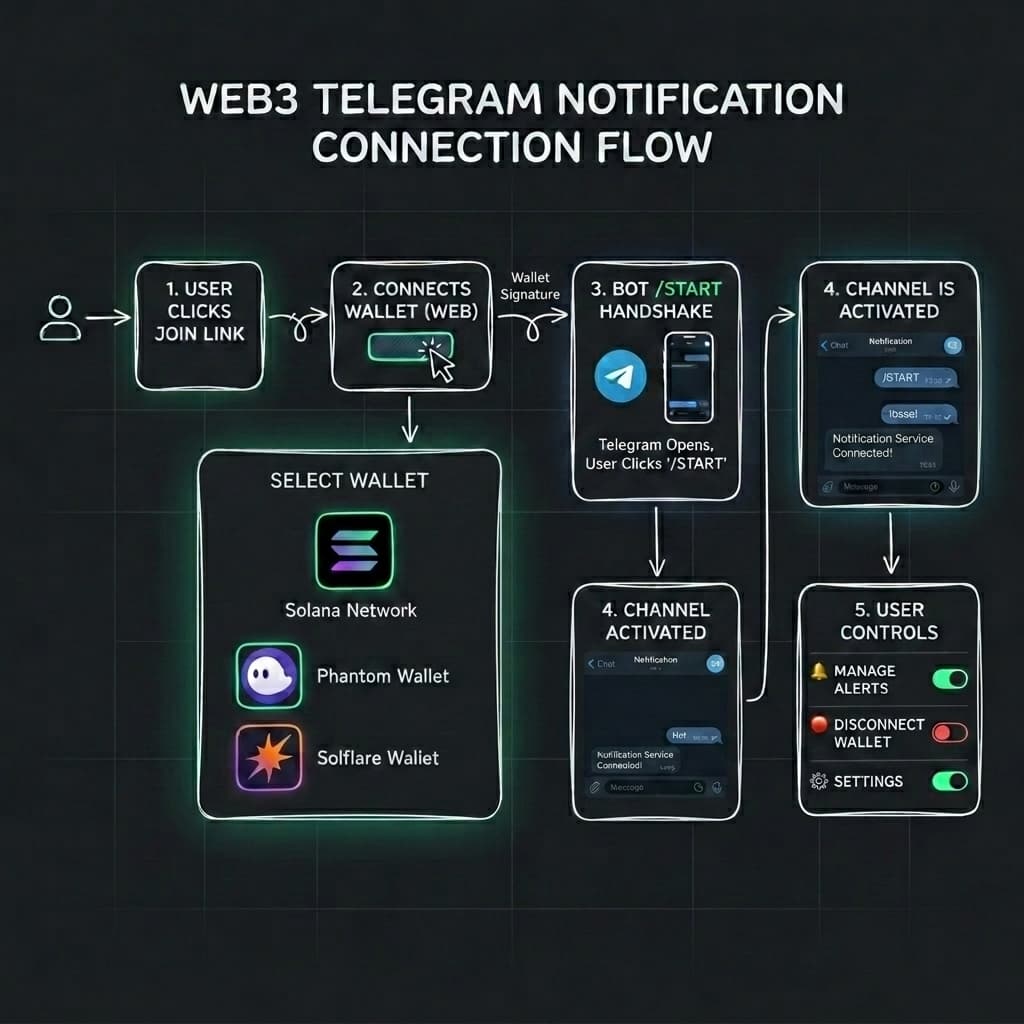
To receive personalized alerts, users subscribe to your protocol using a Join Link or interact directly with the bot.
Join Links
To onboard users, share your protocol's unique join link:
https://notify.useherald.xyz/join/{protocolId}When a user clicks this link, they are guided to connect their wallet and start the Telegram bot conversation. Herald handles all connection handshakes, cryptographic key generation, and on-chain registration automatically.
Bot Commands
Users interacting with the Herald Telegram bot (or your custom bot) can manage their preferences directly using standard commands:
/start— Initializes the connection or updates an existing link./help— Lists available commands and support options./status— Displays active connection status and linked settings./alerts— Shows active notification categories with links to customize preferences./stopor/disconnect— Guides the user through disconnecting their account and permanently erasing their encrypted Telegram details from the blockchain.
Direct In-Line Muting
Every notification delivered by Herald includes a "Mute this protocol" button. Tapping this button instantly mutes future notifications from that specific protocol for 30 days, without affecting messages from other protocols or requiring the user to disconnect their Telegram account.
2. Custom Telegram Bots (Growth Tier+)
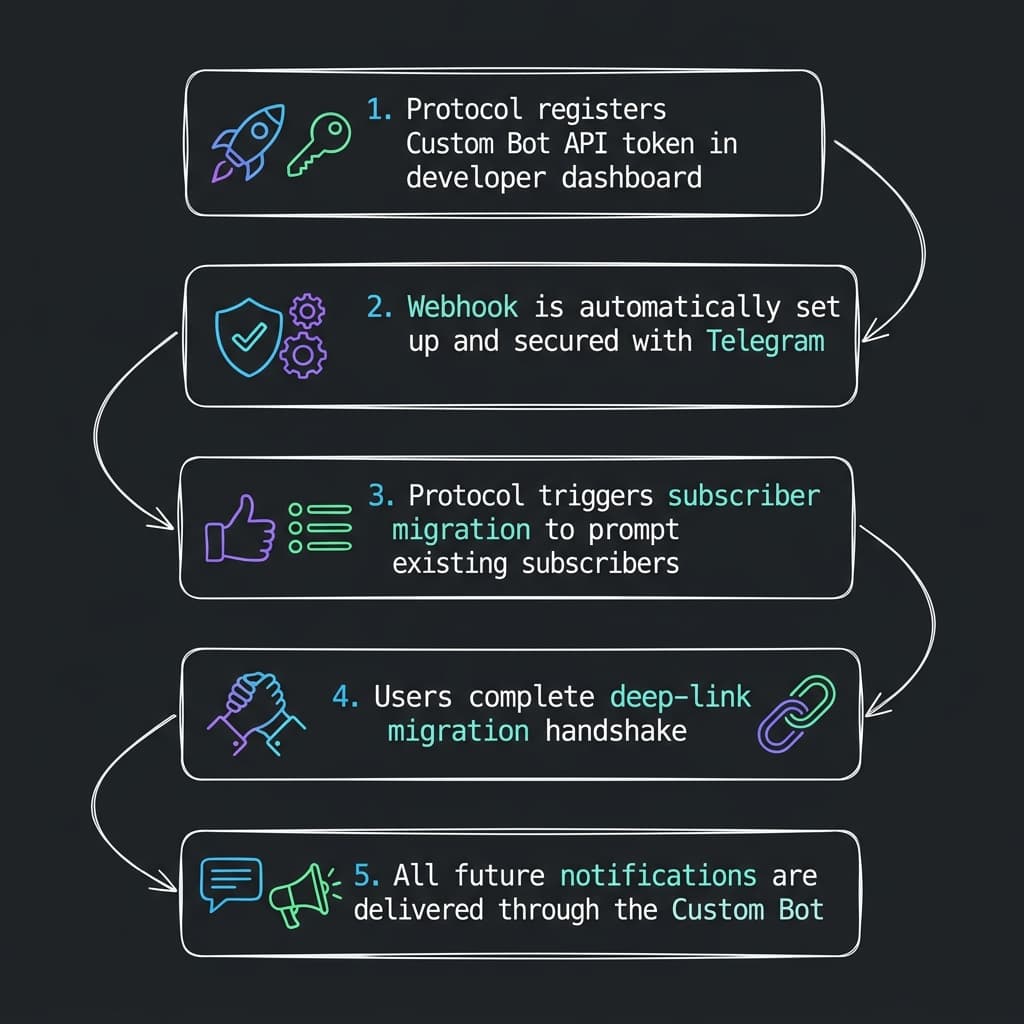
Protocols on the Growth Tier (or above) can configure their own custom Telegram bots to deliver branded notifications (e.g., @MarginFiAlertsBot instead of the shared @HeraldBot).
Setup and Configuration
- Create the Bot: Message
@BotFatheron Telegram, create a new bot, and copy the provided API Token. - Save Token: Enter the token in the Developer Settings -> Channels -> Telegram section of your Herald Developer Dashboard.
- Webhook Setup: Herald automatically registers and secures the webhook communication with Telegram.
- Sync Profile: Push your protocol's name, logo, and description directly to your custom bot from the Herald Dashboard.
Subscriber Migration
If you transition from the shared @HeraldBot to a custom bot, existing subscribers must link to your new bot:
- Migration Notification: Upon configuring your custom bot, Herald prompts your active Telegram subscribers to connect to the new bot.
- Verifying the Connection: When the user opens the deep link and taps
/starton your new custom bot, Herald automatically switches their delivery route to your custom bot.
3. Group and Channel Broadcasts
Protocols can broadcast notifications directly to Telegram Groups or Channels (e.g., to announce liquidations, new proposals, or community updates).
Secure Configuration (Link Group Flow)
To protect your group setup from being tampered with by regular members, Herald uses a zero-config secure handshake:
- Initiate setup: Click the Link Group / Channel button on the Developer Dashboard. This generates a secure, 10-minute Redis nonce.
- Add Bot via Link: Open the generated Telegram deep-link (
https://t.me/useheraldbot?startgroup=setup_{nonce}orhttps://t.me/{customBotUsername}?startgroup=setup_{nonce}) and add the bot to your group as an Administrator. - Automatic Verification:
- When added, the bot automatically receives the
/start setup_{nonce}command in the group chat. - To prevent unauthorized linkage, the bot calls the Telegram API (
getChatMember) to verify the message sender is a group creator or administrator. - Once verified, Herald registers the
groupChatIdto your protocol, updates the nonce state to completed, and posts a success confirmation in the group chat. - The Developer Dashboard immediately detects the success state, saves the configuration, and refreshes.
- When added, the bot automatically receives the
Security and Admin Commands
Regular members are strictly restricted from modifying bot configurations:
- Creator / Administrator Check: Commands like
/statusand setup handshakes verify the user's role before executing. Any command sent by a non-admin is silently ignored. - Mute Categories: Group admins can mute specific notification categories by clicking inline buttons. These buttons prompt an admin validation step to prevent unauthorized group users from tampering with category mutes.
Welcome Messages and Engagement
- Welcome Messages: Define a custom HTML/Markdown welcome template in your settings. The bot will automatically greet new members who join the group:
👋 Welcome <b>{{name}}</b> to the community! Enable personalized alerts at notify.useherald.xyz. - Auto-Pin Notifications: Configure the bot to automatically pin new critical alerts to the top of the group chat.
- Reaction Metrics: Herald aggregates message reactions (e.g., 👍, 🔥, 🚀) left on group notifications, displaying engagement trends in your analytics dashboard.
4. Topic Thread Routing (Supergroups)
If your group chat is a Telegram Supergroup with Topics enabled, you can route notifications dynamically to specific forum topics based on their category (e.g., routing votes to the Governance topic and updates to the Announcements topic).
Setup
- Enable Topics: Ensure your Telegram group is a supergroup and has "Topics" enabled in Telegram.
- Securely Link Group: Complete the Link Group / Channel configuration described above to establish the connection and verify admin permissions.
- Auto-Create Topics: Click Create Forum Topics in the Developer Dashboard. Herald will automatically set up default topics inside your supergroup:
- 🗳️
Governance - 💰
DeFi - 🛡️
Security - 📢
Marketing - ⚙️
System
- 🗳️
- Category Routing: Herald automatically maps these topics to your notification categories. When sending a notification, specify the matching category in your API payload:
// This notification is automatically routed to the "Governance" topic thread
await herald.notify({
  wallet: "GROUP_BROADCAST",
  subject: "Governance Proposal #42 Live",
  body: "A vote to upgrade the oracle is live. Cast your vote.",
  category: "governance",
});
Next Steps
- REST API Reference — inspect parameters for custom bot webhooks and triggers.
- Integration Examples — view complete backend notification scripts.